Getting started with TruthScan
Need subtitles in another language?How to turn them on
- Play the video, then select the CC (subtitles) button in the bottom right of the player.
- Select Settings (the gear icon), then Subtitles/CC.
- Choose the language you want from the list.
On a phone, tap the video once to show the controls, then tap CC or the gear icon.
In this guide
Sign in, take a quick tour of your dashboard, check your usage in Usage & Billing, and invite your team so everyone works from the same workspace.
- Sign in and open your account dashboard
- Find every tool from the left sidebar
- Turn Zero Data Retention on or off
- Check your remaining scans in Usage & Billing
- Invite team members to your workspace
Good to know
- Invite colleagues to your existing workspace rather than having them create their own accounts, so your results and credits stay in one place.
- Everyone in the workspace shares the same credit balance and Detection History.
- There are four roles. Admins manage everything, including the team, billing, and API keys. Billing Admins manage billing and subscriptions. Developers manage API keys and run scans. Members run and view scans.
- There's no seat limit on any plan, so you can invite as many teammates as you need. You're billed on scan usage, not seats.
- Need us to add people for you? Contact us and we'll set them up.
Chapters
TranscriptRead along or copy
Welcome to TruthScan. In this video, we'll sign in, take a quick tour of your dashboard, check your usage, and invite your team.
Go to truthscan.com and sign in with your work email. If your organization uses two-factor authentication, enter your code when prompted.
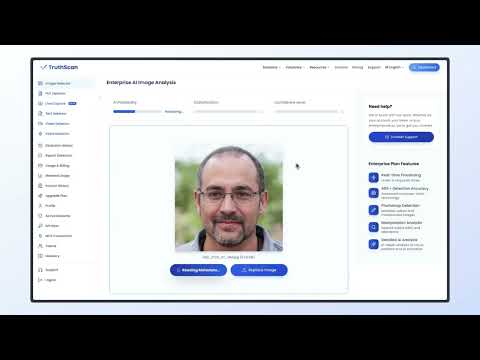
Once you're signed in, this opens your account dashboard, where everything in TruthScan lives.
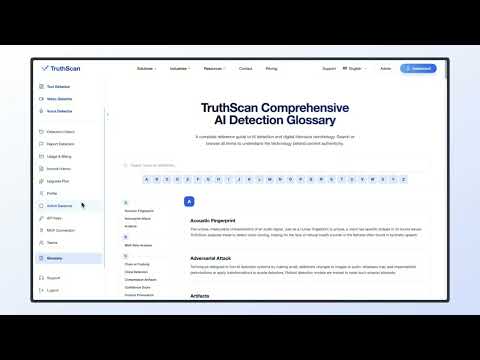
The left sidebar is your main menu. At the top are the detectors: Image, PDF, Capture, Text, Video, and Voice. Below them, you'll find Detection History, Report Detection, Usage and Billing, and Invoice History. Account Settings, API Keys, Teams, and the Glossary sit at the bottom.
At the top of the page is Zero Data Retention. When it's on, detection results and uploaded files are not stored in your history. Leave it off if your team needs a record of past scans.
Open Usage and Billing to see your remaining scans and a breakdown of how they were used. Invoice History keeps all of your invoices in one place.
To bring your team in, open Teams and click Invite Member. Enter their work email and send the invite. Everyone in the workspace shares the same credits and detection history.
And that's your workspace set up. Next, we'll run your first image scan.