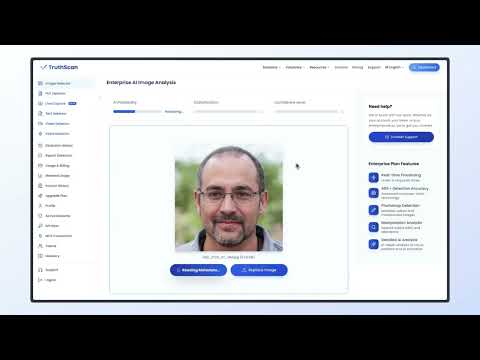
Scan images and read the results
Need subtitles in another language?How to turn them on
- Play the video, then select the CC (subtitles) button in the bottom right of the player.
- Select Settings (the gear icon), then Subtitles/CC.
- Choose the language you want from the list.
On a phone, tap the video once to show the controls, then tap CC or the gear icon.
In this guide
Scan an image with the Image Detector and walk through every part of the result: the verdict, AI probability, Confidence Level, heatmap, detailed analysis, and warnings. Then scan a whole ZIP at once with Bulk Analysis.
- Scan one image by upload or URL
- Read the verdict, AI probability, and Confidence Level
- Use the heatmap and the detailed analysis
- Tell AI Edited and Digitally Edited results apart
- Act on quality warnings
- Scan many images at once with a ZIP
Good to know
- Results usually take a few seconds. On Enterprise plans, we can work with you to lower processing time for your volume.
Chapters
TranscriptRead along or copy
In this video, we'll scan images with TruthScan and walk through every part of the result.
Open Image Detector from the sidebar. You'll see three options: Basic or Enterprise Analysis for a single image, Paste URL, and Bulk Analysis for many images at once. For a single image, choose the first option or switch to Paste URL to scan an image that's already online.
We'll select a single file for now. You can either drag and drop it or choose Upload File. Results usually take a few seconds.
At the top of the result is the verdict. Real means no meaningful signs of AI were found. The percentage is the AI probability, or how likely the image is to be AI-generated. Next to it, the Confidence Level shows how sure the result is.
Now let's upload an image made with AI and see how the result changes. Synthetic means the image shows signs of being AI-generated. See the warning under the score? AI Watermark Detected means the image carries a SynthID watermark, a strong sign it was made with AI.
For images flagged as AI, the heatmap shows where the signs were found. Redder areas mean a higher chance of AI manipulation.
Below that, the detailed analysis explains why. Detailed Reasoning gives the full explanation behind the verdict. Key Indicators list the red flags or signs of authenticity the model found. And Visual Patterns point out details you can check in the image yourself, like lighting, textures, or warped backgrounds.
Next, a real photo that was changed with AI tools. This one comes back as AI Edited. For edited images, the percentage shows the edit probability instead.
And one more edit, this time made with regular editing software. Digitally Edited means the photo was changed with standard editing software.
Now let's look at a few things that can affect a result. This next photo is real but blurry. Some warnings mean the result may be less reliable, even when it says Real. Low Image Quality means the image is too blurry, dark, or low resolution.
And this one is a photo taken of a computer screen. Screen Capture Detected means it's a photo of another screen. When you see either one, ask for the original file or send a Live Capture link to get a verified photo instead.
To check many images at once, open Bulk Analysis and upload a ZIP file. Each image is scanned and shown in a results grid. Click any image to open its full result.
Every scan is saved to Detection History, so you can come back to it anytime.
Next, we'll cover PDFs, video, and voice.